
Give Serum 2 a fresh look with free skins. Explore different designs, preview the main synth and Effects views, and find out how to install your favourites below. We’ll add more skins to the collection over time.
Created a free Serum 2 skin you’d like to see featured here? Get in touch.
Installation · Skins · FAQ
How to install a Serum 2 skin
- Unzip the download, keeping each skin’s files and folder structure together.
- In Serum 2, choose Menu → Open Serum 2 Presets Folder, then open Skins.
- Place the complete skin folder inside Skins, alongside Default. Keep the Default folder untouched.
- Choose Menu → Rescan Folders on Disk.
Reopen the plug-in if needed. - Click the logo in the top-left corner, open the Skin submenu and choose your new skin.
Follow the creator’s instructions if the package uses a different installation method. For skins supplied in 2× only, check the scaling instructions in the FAQ below.
Compatibility: official skin support starts with Serum 2.1.0 (Xfer’s confirmation). Individual skins may require a later version.
Discover the skins
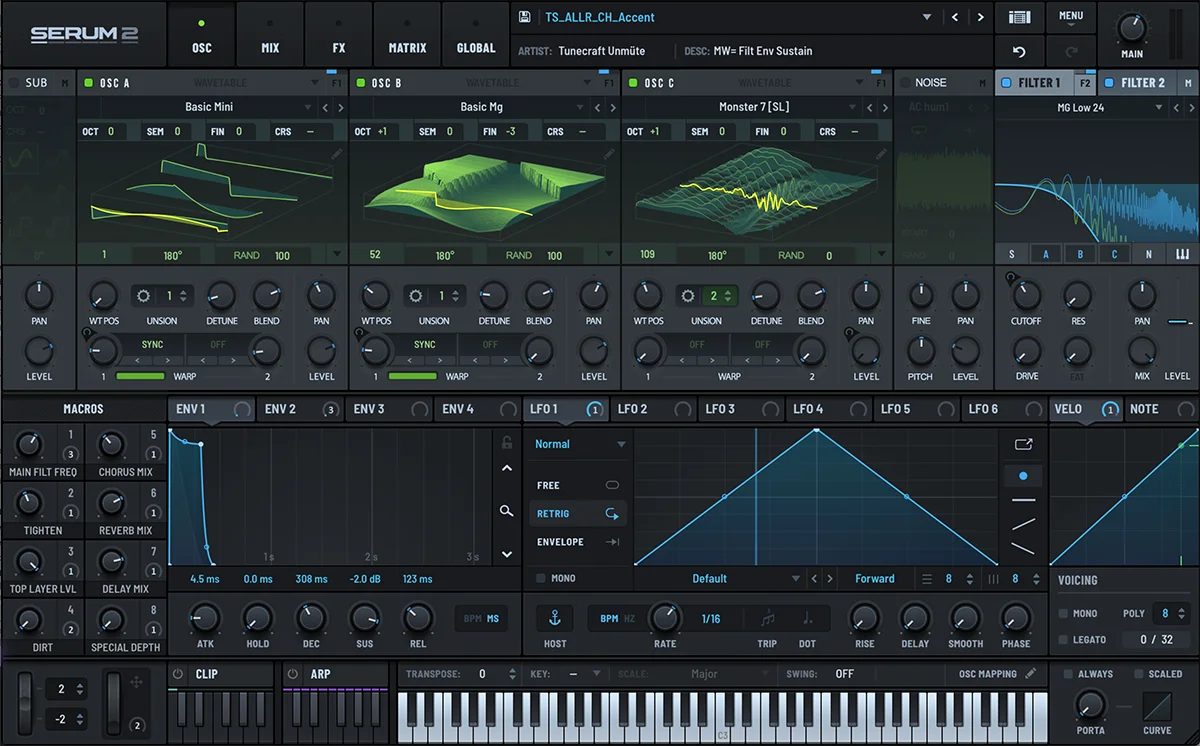
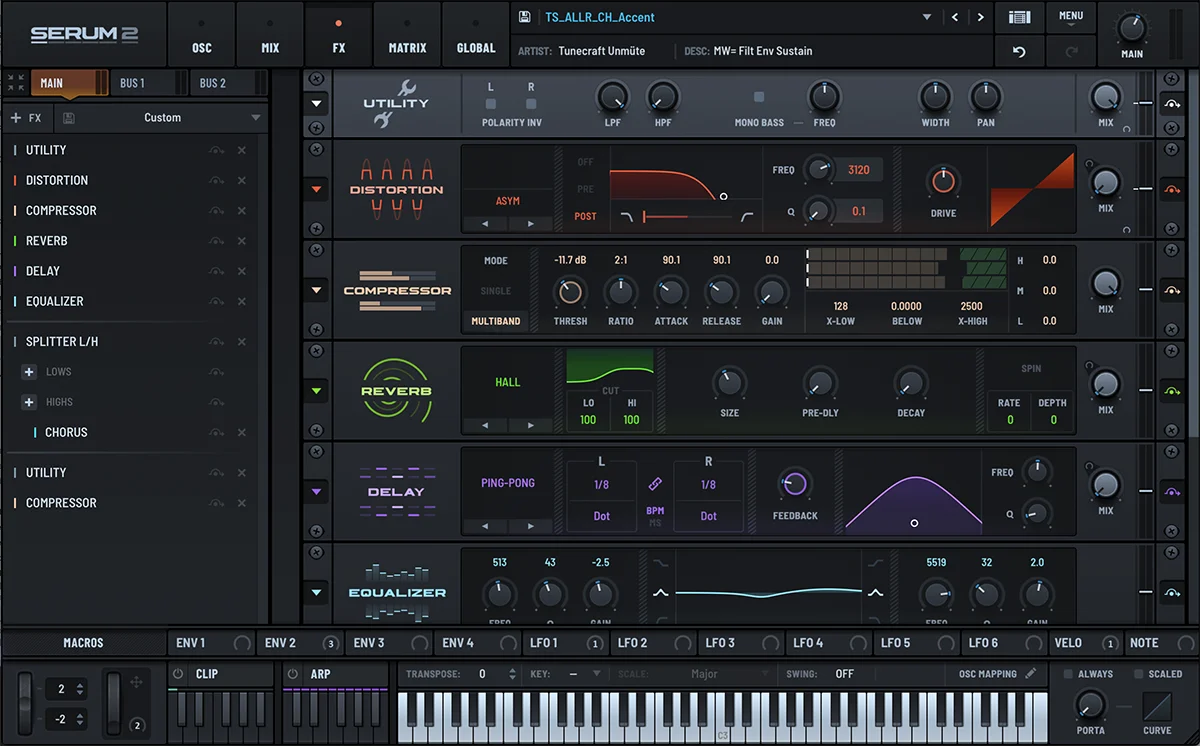
Darker Default
Created by CASKaudio.
A subtle contrast variation on Serum 2’s original interface.
Darker top panels give the familiar layout a more subdued look, while the white keyboard and coloured controls keep the stock design easy to recognise.
Switch between the oscillator and Effects views to see the changes across both panels.
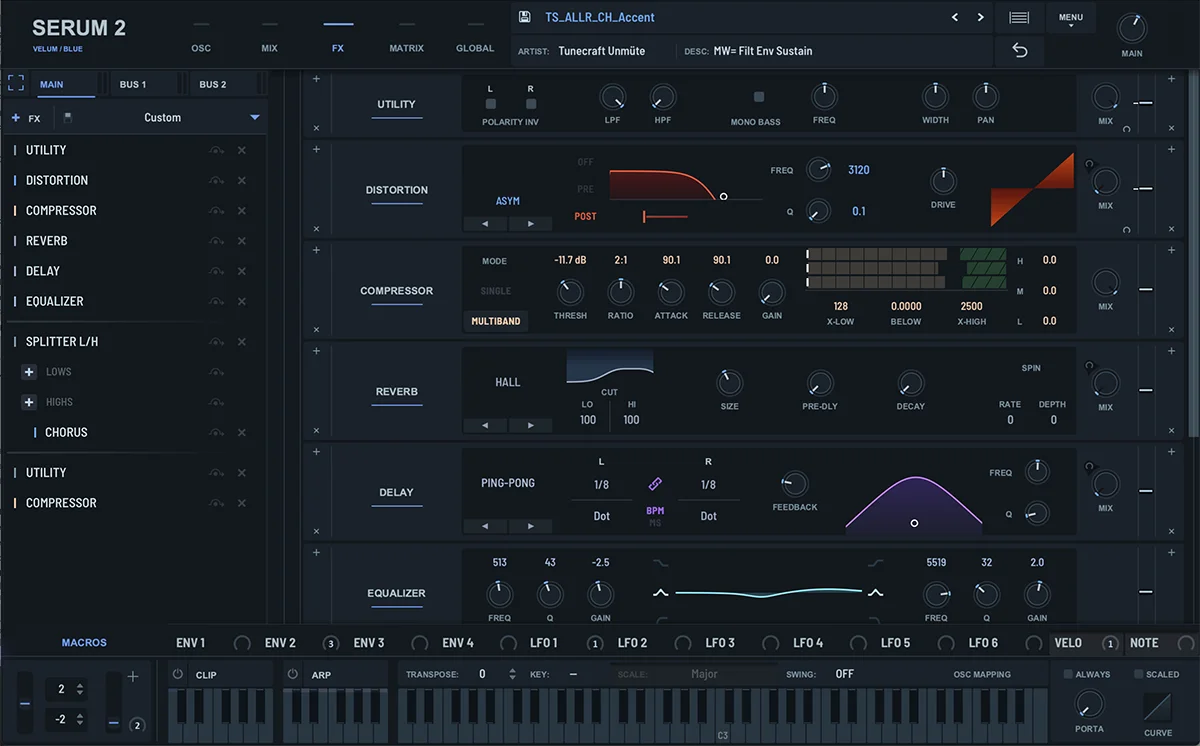
Velum Blue
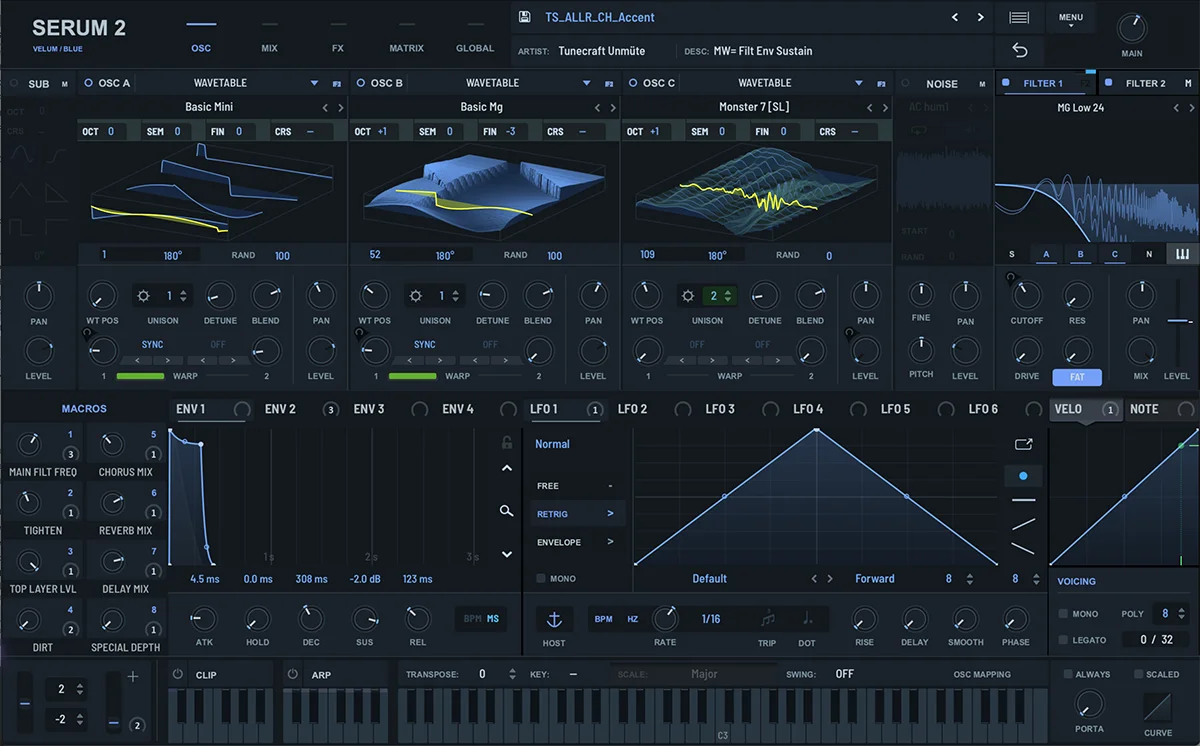
Created by AleckAstan.
Deep blue-grey panels, fine blue accents and a dark keyboard give Velum Blue a clean, restrained look. The same palette carries through to the Effects view, with coloured curves and clear module labels.
The download contains the complete Velum Collection v1.6: Velum plus 4 colour variants — Blue, Red, Yellow and Tokyo. Velum Blue is shown here.
You may also be interested in...ALLURE FOR SERUM 2
► 166 presets for Serum 2
► Fully assigned macros for expressive sound shaping
► Custom wavetables, noise samples and bonus content
Check out the full content on the product page!
- S2 Preset GTR_Allure
- S2 Preset BA_Magnetic
- S2 Preset PD_Chrysalis
- S2 Preset BA_DreamDrive
- S2 Preset CH_DigiVibe
- S2 Preset KY_Momentum
- S2 Preset BA_Chaos
- S2 Preset PD_Digitalis
- S2 Preset SEQ_AutoDisco
- S2 Preset STR_Golden
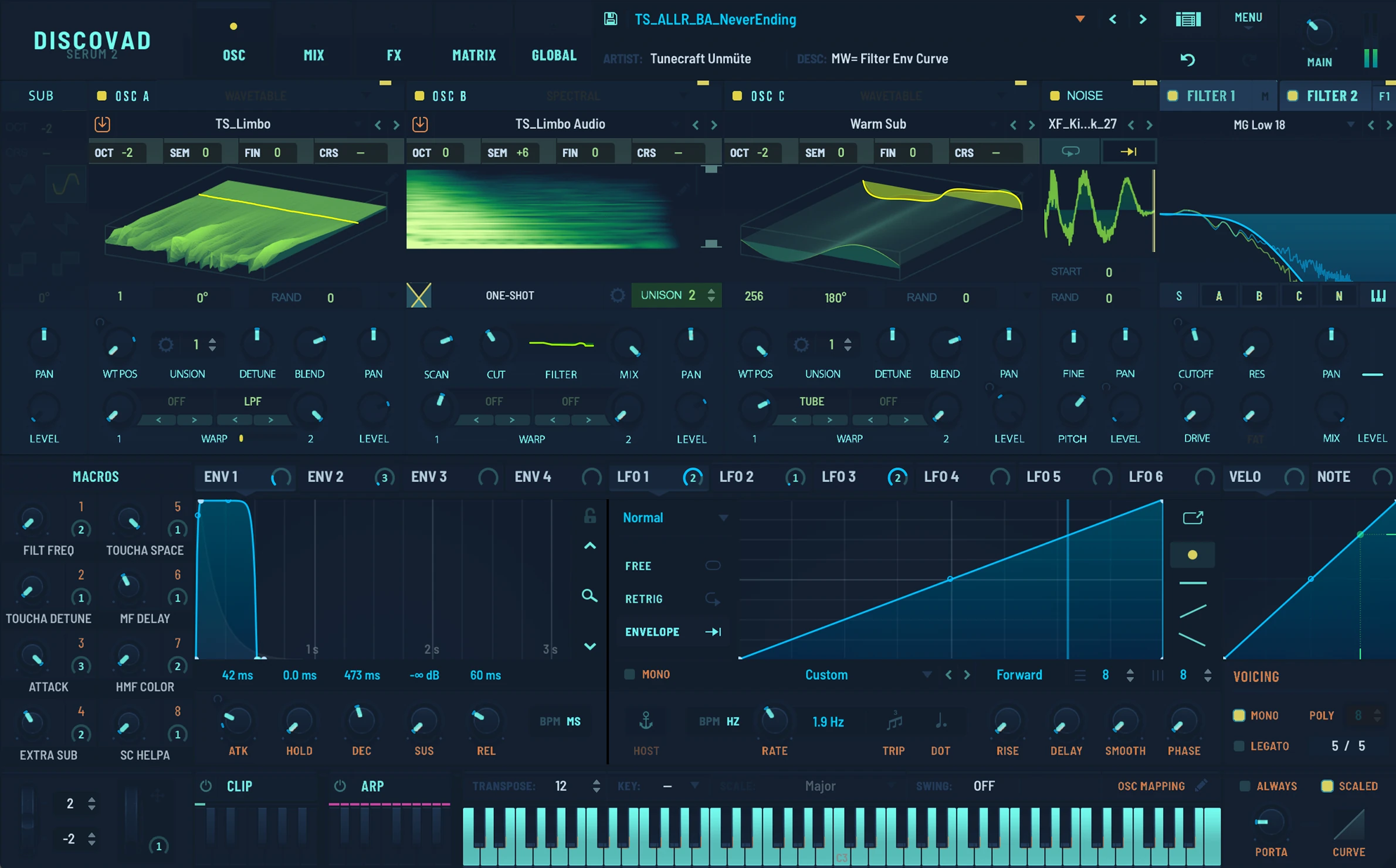
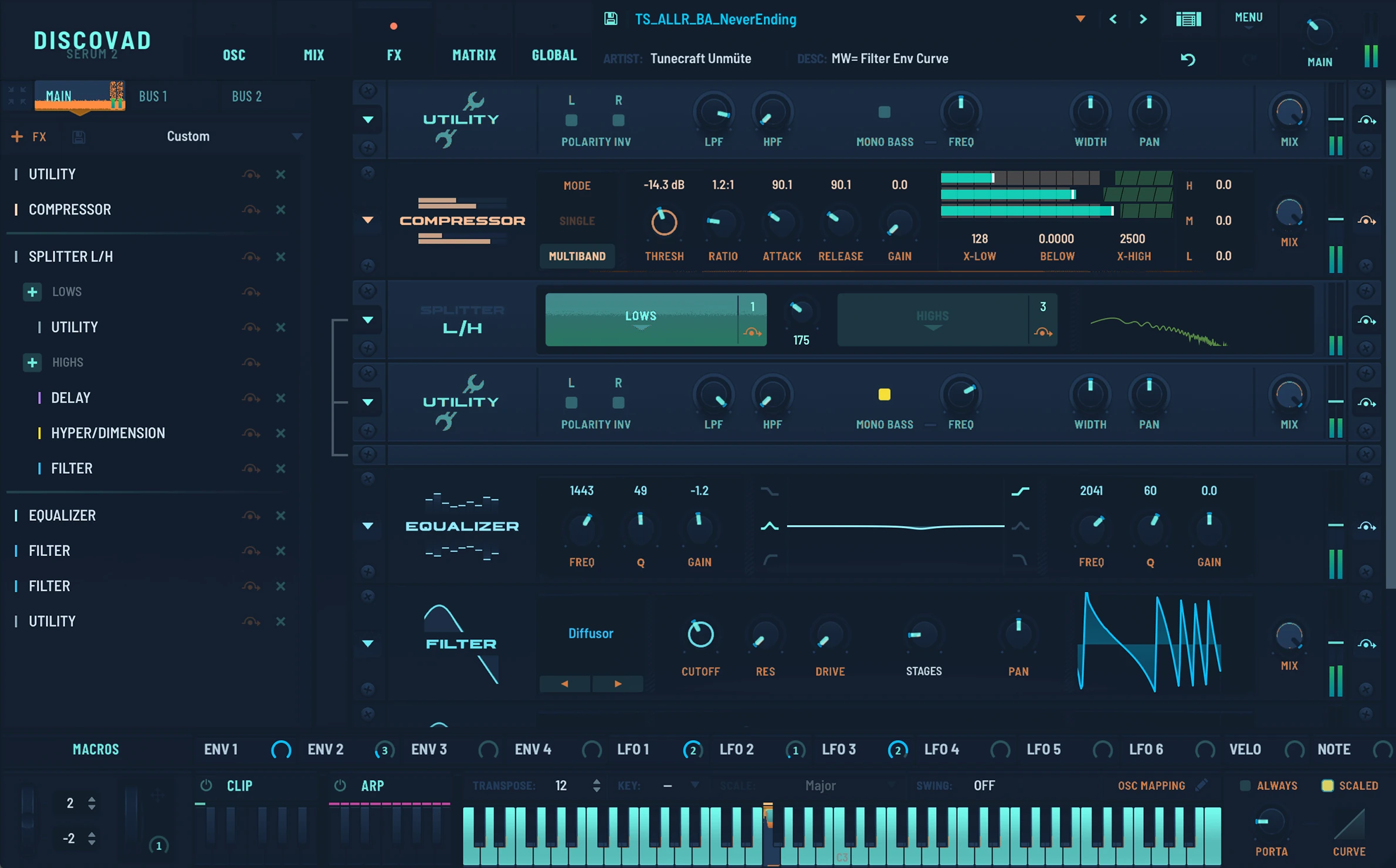
Ikate Glow
Created by Discovad.
A deep navy interface with cyan controls and bright green waveform accents. Ikate Glow is shown here; the Discovad collection also includes Obsidian Black, Pearl White and Velvet Purple.
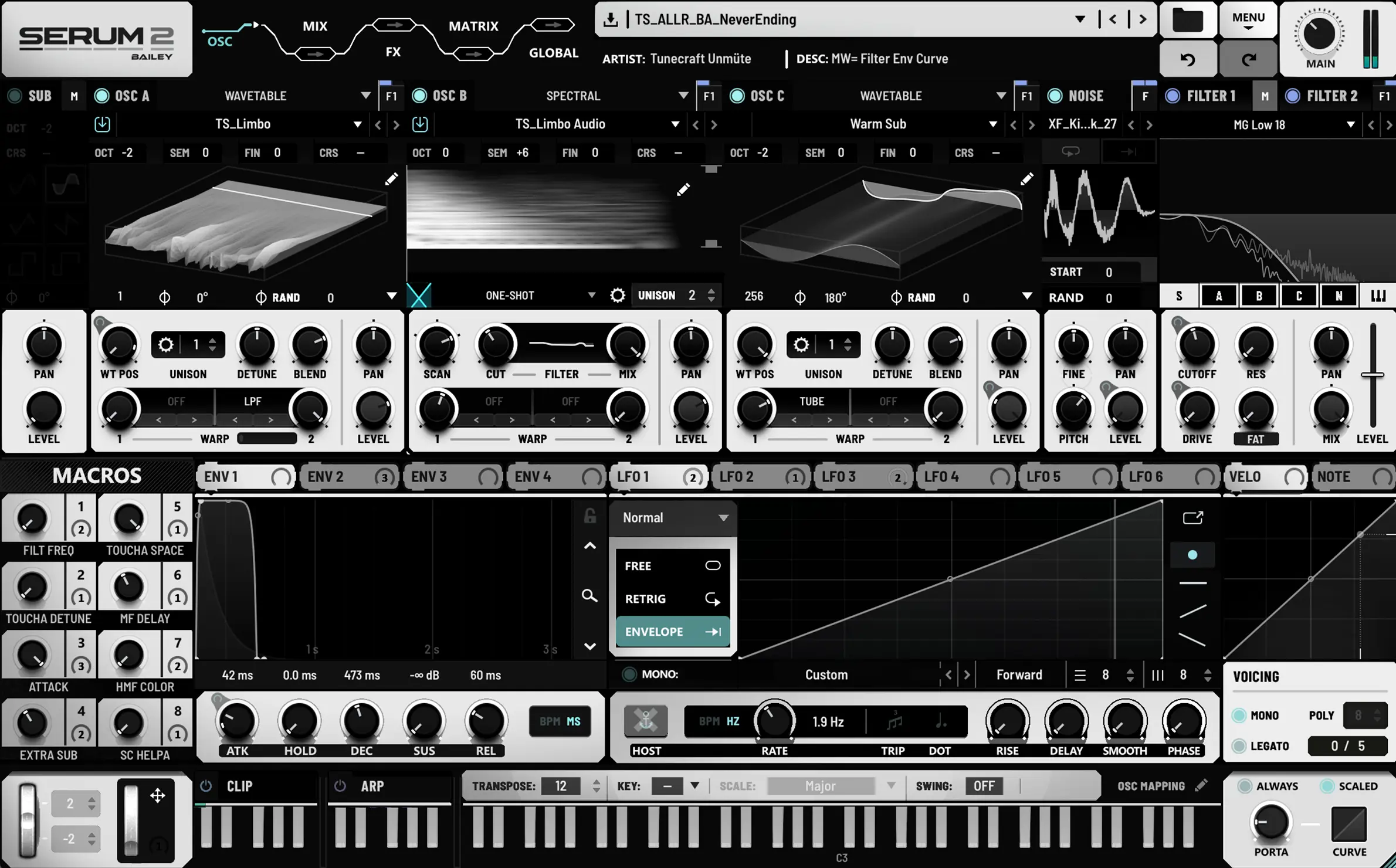
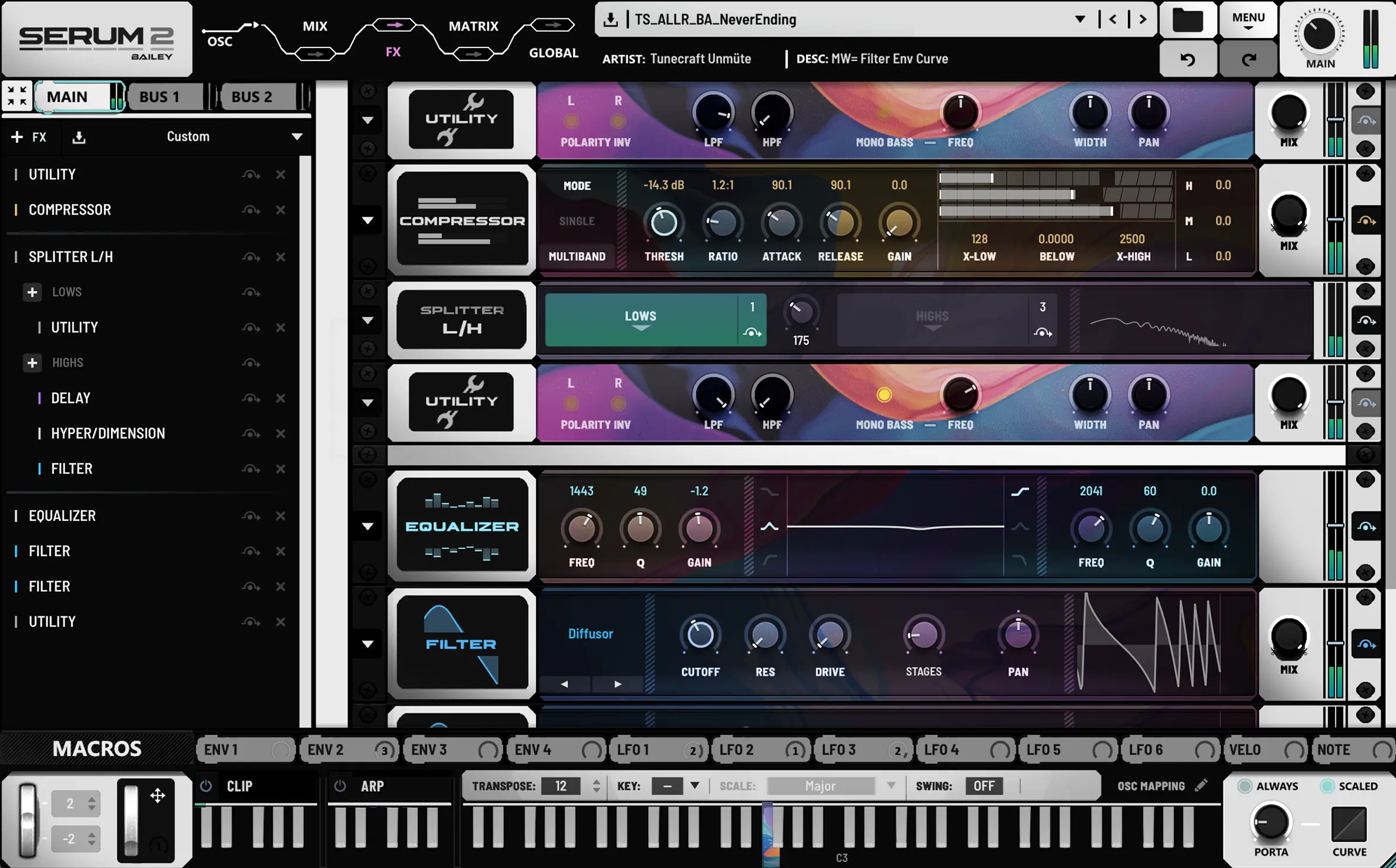
Eidelon
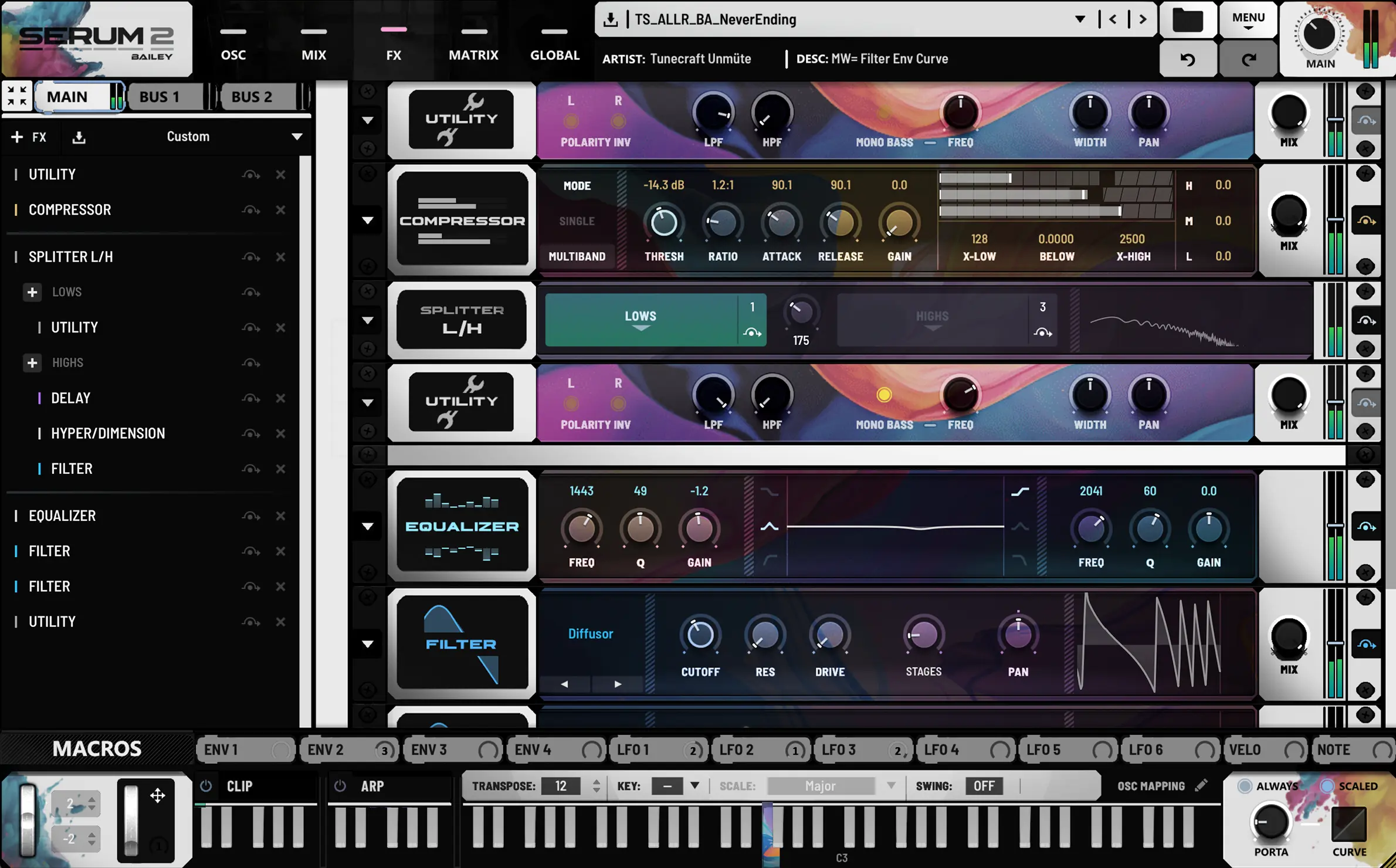
Created by @prodbailey.
Black and white panels with soft cyan highlights give Eidelon a clean, high-contrast look. Switch to the Effects view to see the coloured modules: they bring a softer, more colourful contrast to the main synth panel.
2× skin — set 110%+ once to apply permanently.
You may also be interested in...PLACES FOR SERUM 2
► 180 presets for Serum 2
► For melodic house & techno, progressive…
► Bonus pack included
Check out the full content on the product page !
- CH_Cliffside
- LD_Infinity
- PD_Island
- PL_Forest
- STR_Dungeon
- SY_Coldrush
- CH_Moonbay
- LD_Nebula
- PL_Ascender
- SEQ_Pipeline
- SY_Moonwake
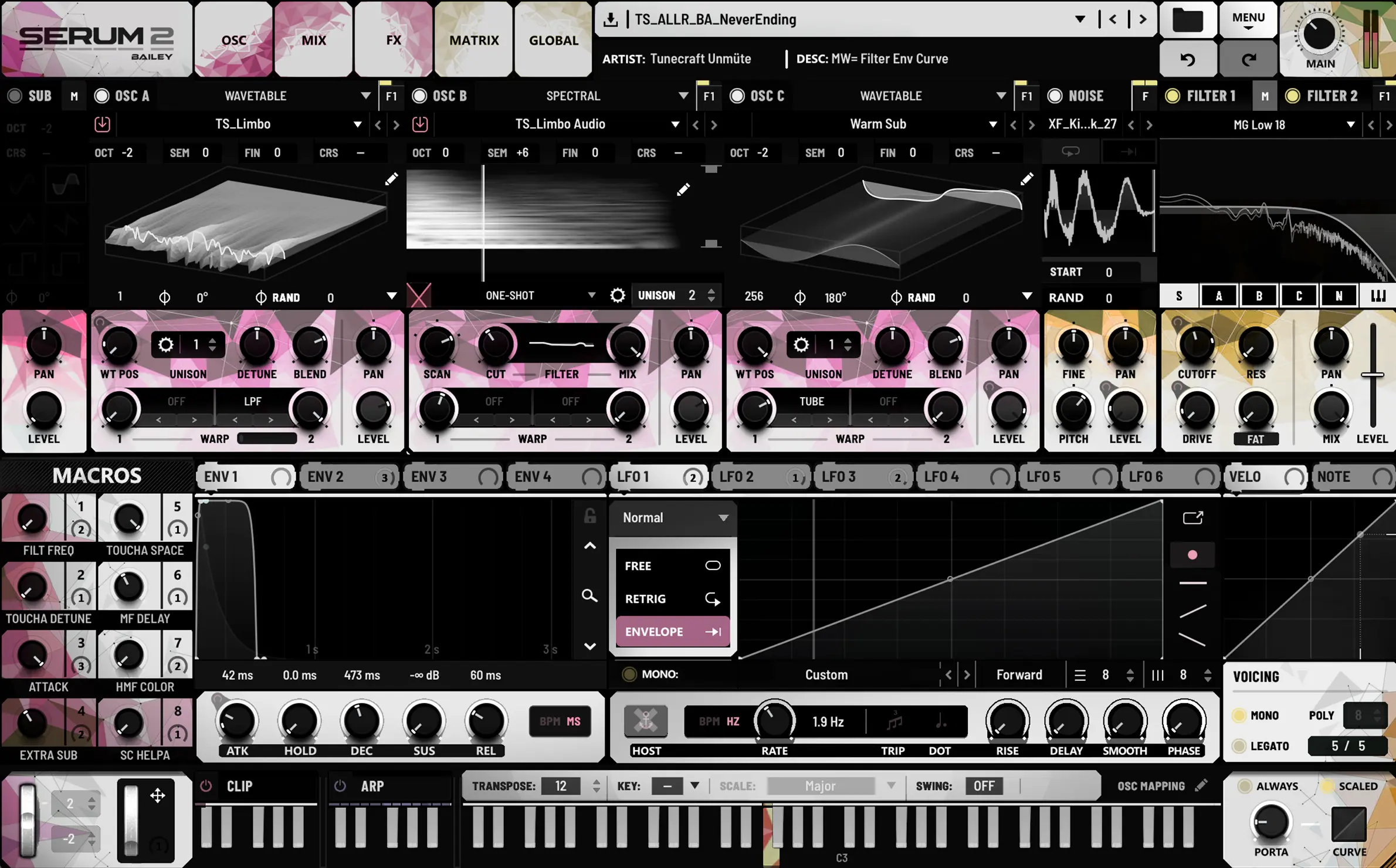
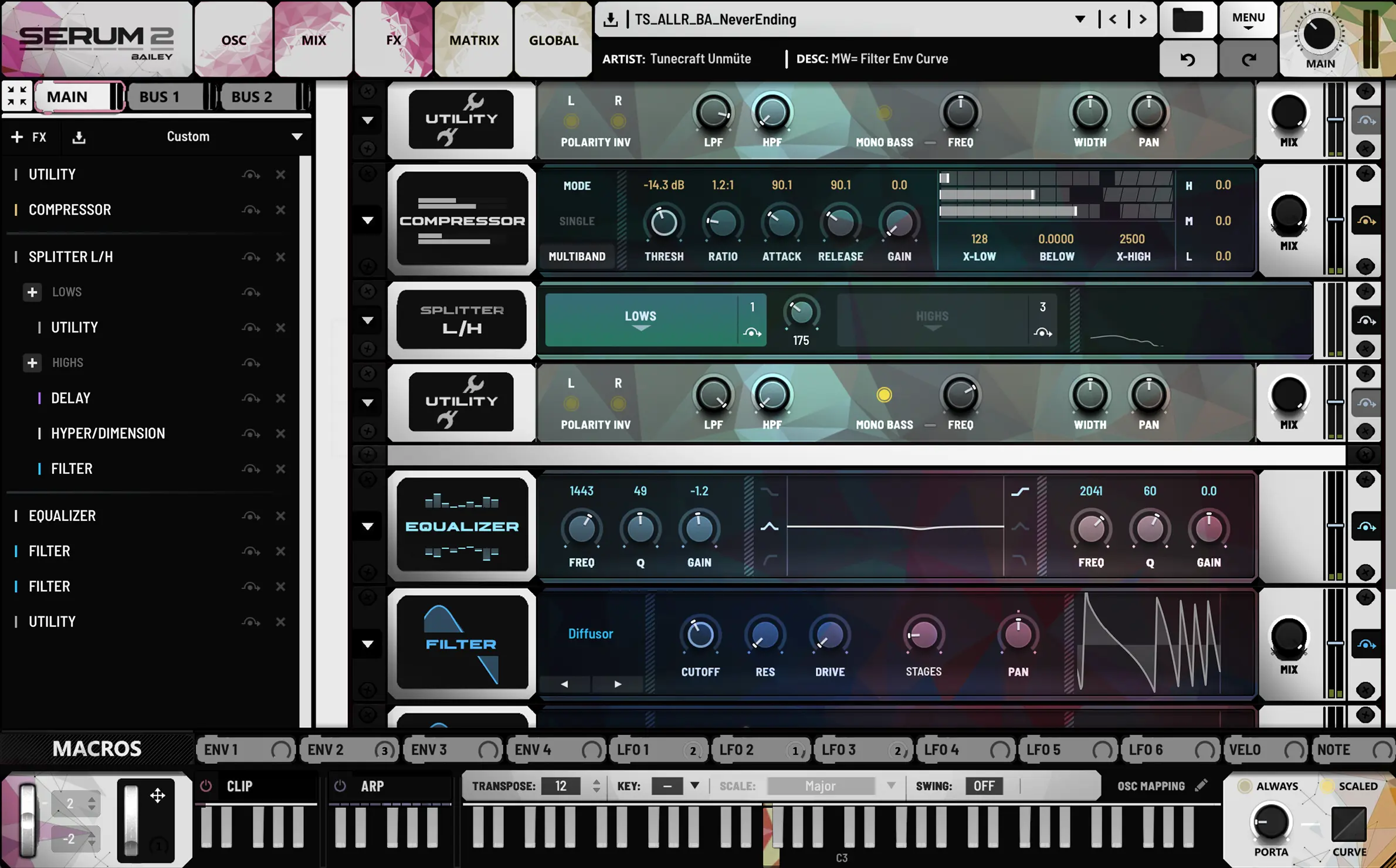
Mosaics Alt
Created by @prodbailey.
Geometric pink shapes and yellow-green accents give this black and white interface a playful character. The Effects view adds larger areas of colour across the modules, offering a different feel from the main panel.
2× skin — set 110%+ once to apply permanently.
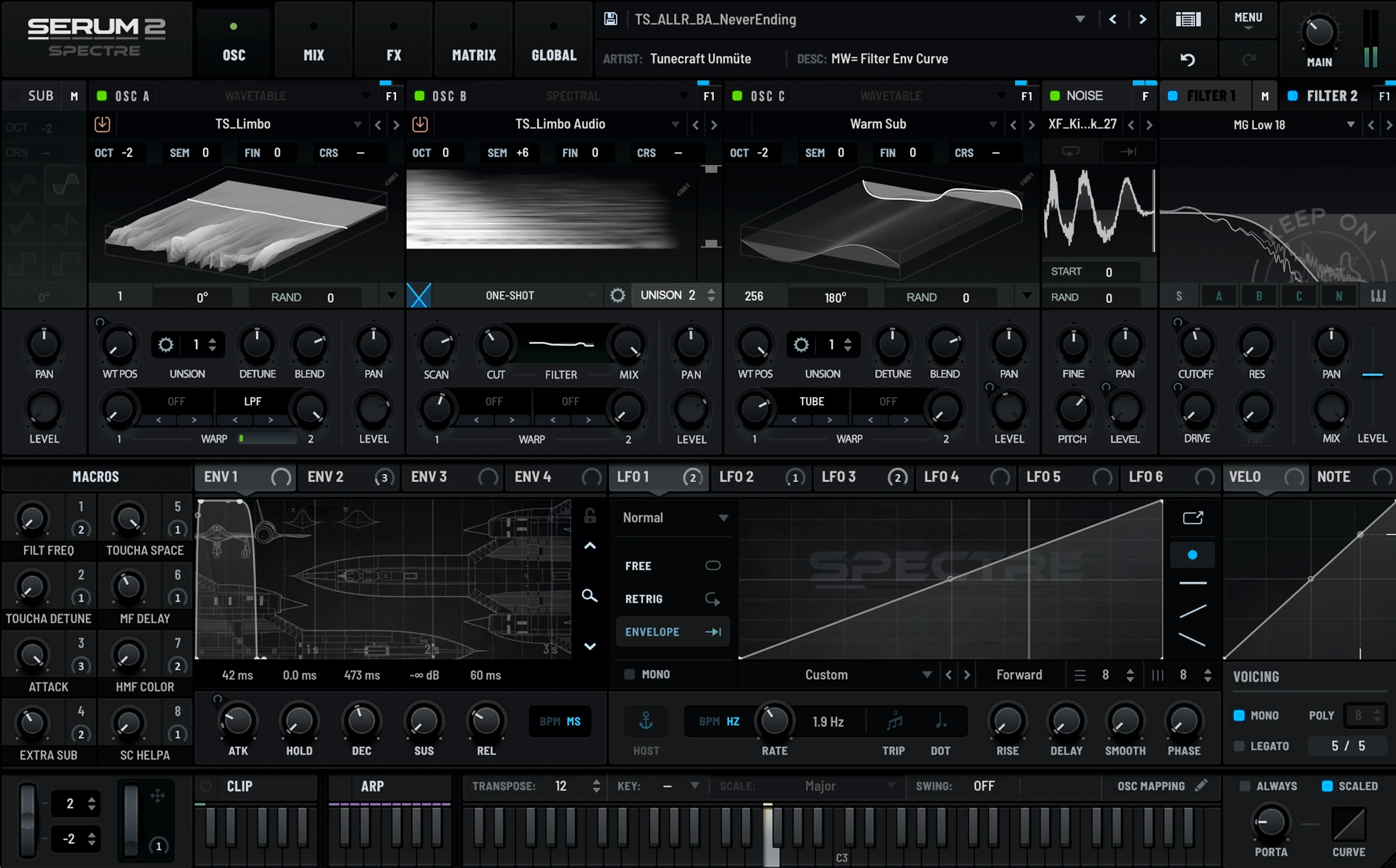
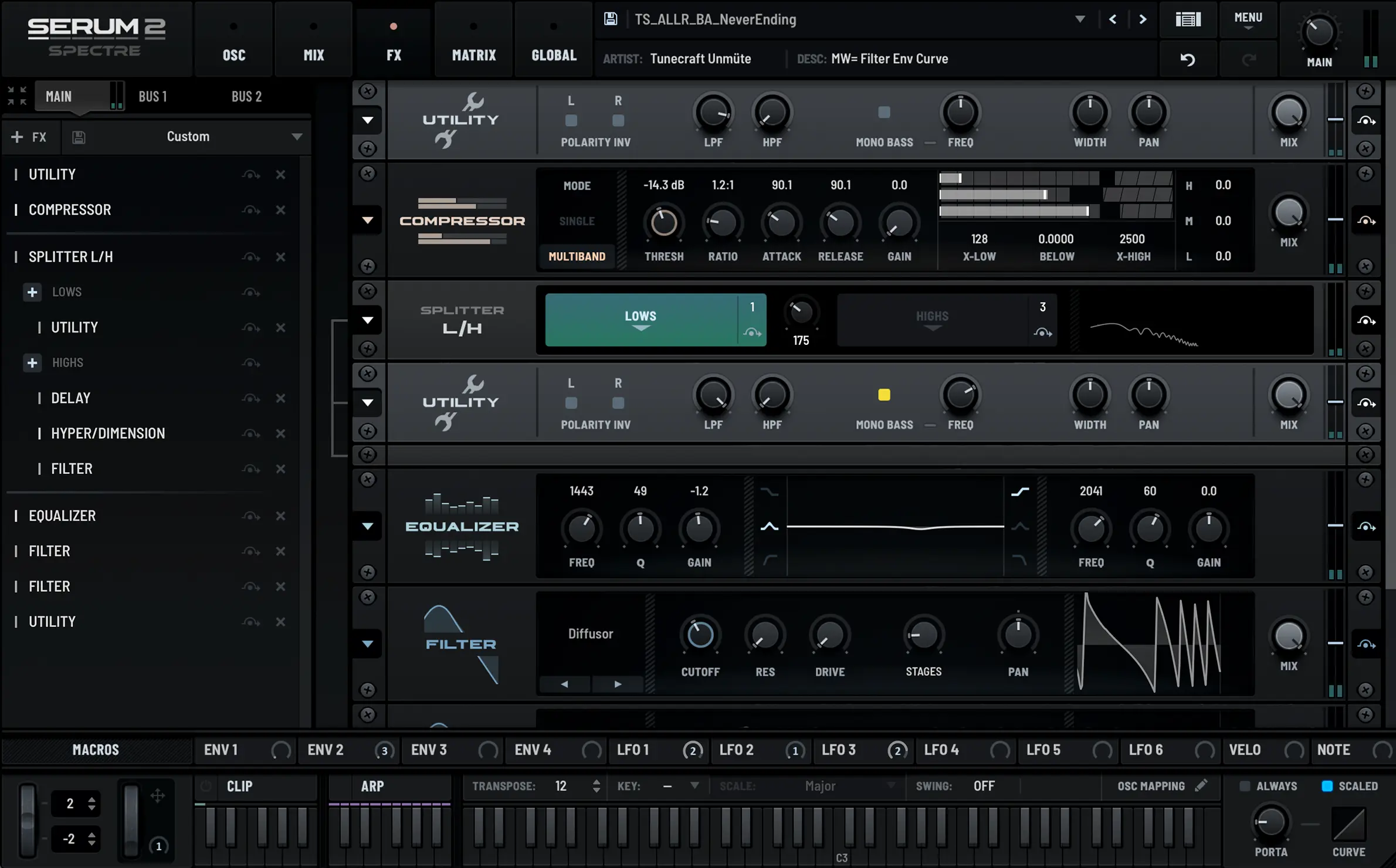
Spectre
Created by @prodbailey.
Charcoal panels, subdued green and blue highlights, and subtle spacecraft illustrations create a darker, atmospheric look. Both views keep that restrained palette, making Spectre a distinct alternative to the lighter designs.
2× skin — set 110%+ once to apply permanently.
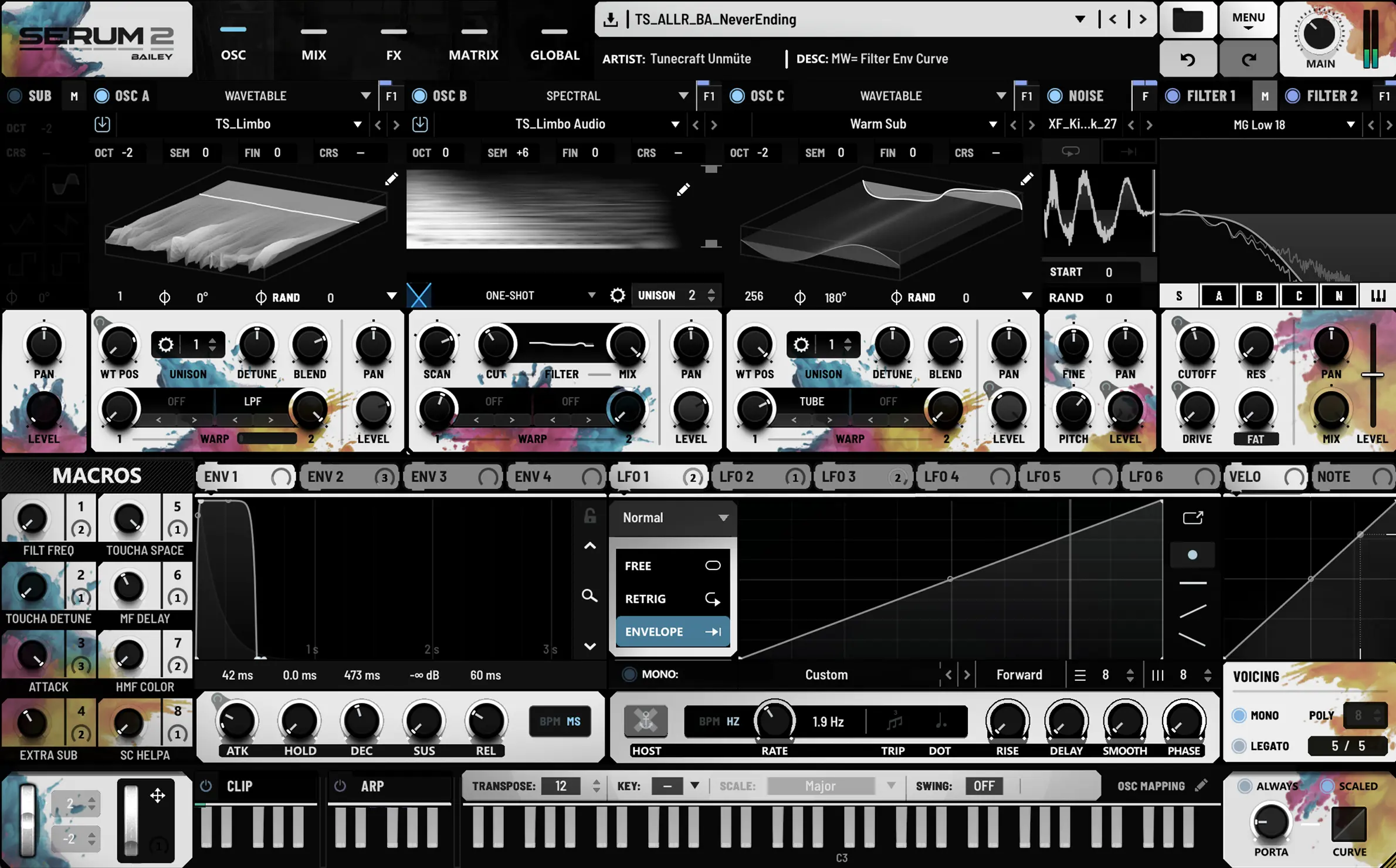
Palette Alt
Created by @prodbailey.
Splashes of blue, pink and yellow paint break up the black and white panels. The Effects view reveals more coloured modules, extending the palette beyond the main synth panel.
2× skin — set 110%+ once to apply permanently.
FREE SERUM 2 SKINS
Serum 2 skins: FAQ
No. Skins change the interface, not the synthesis engine or your presets.
Choose a skin made for your version of Serum. Serum 1 skins are not interchangeable with Serum 2 skins. For the original plug-in, browse our Serum 1 skin collection or Serum 1 skins — Part 2.
Check that the complete skin folder is inside Serum 2’s Skins folder, rather than another nested folder from the ZIP. Check the creator’s version requirements, choose Menu → Rescan Folders on Disk, then reopen the plug-in if needed.
Also check the skin’s scaling requirements. Some skins include both 1× and 2× assets, while @prodbailey’s skins are supplied in 2× only. For these, set Serum 2’s interface scale to 110% or more once to apply the skin permanently.
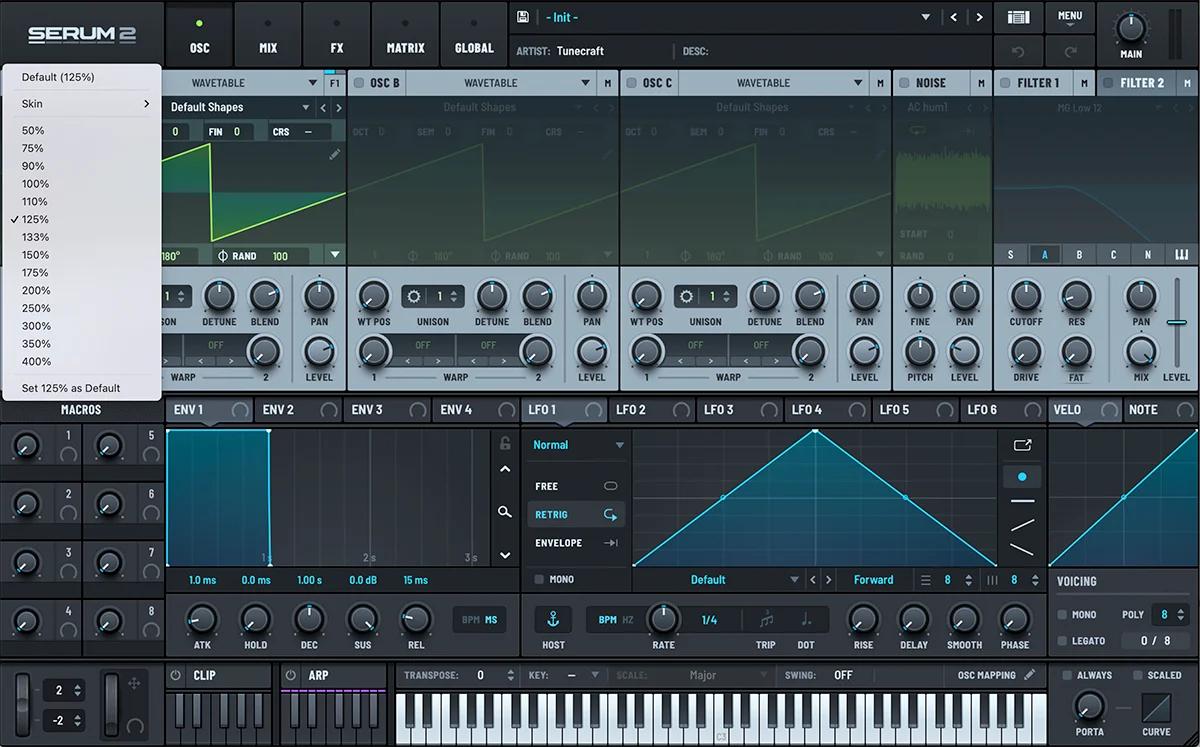
See “How do I change Serum 2’s interface size?” below for the menu and a screenshot.
Yes. Click the logo in the top-left corner, open the Skin submenu and choose Default. Keep the Default folder intact so you can return to the original interface at any time.
Click the logo in the top-left corner of Serum 2’s interface to open the size menu. It normally displays “Serum 2”, but a custom skin may replace it with the creator’s artwork. Choose the interface scale you want from this menu.
For @prodbailey’s 2× skins, set the scale to 110% or more once to apply the skin permanently.
You can also change skins from the same menu: open the Skin submenu using its arrow, then choose a skin.
More free Serum 2 skins to come
We’ll add more designs to this collection. Created a Serum 2 skin you’d like to share? Get in touch.